A Collaborative Spotify Playlist– The collaborative Guide
1. Introduction
This document provides a step-by-step guide on how to create and manage a collaborative playlist on Spotify. A collaborative playlist allows multiple users to add, remove, and rearrange songs, making it ideal for parties, group projects, or simply sharing musical tastes with friends.
2. Target Audience
This guide is intended for individuals who are familiar with the basic functionality of Spotify, including navigating the interface and playing music. No prior experience with playlist creation or collaborative features is assumed. The guide is designed for users of all technical skill levels, from beginners to intermediate users.
3. Prerequisites
- A Spotify account (free or premium).
- A device with the Spotify application installed (desktop, mobile, or tablet).
4. Creating a Collaborative Playlist (Mobile App)
This section details the process using the Spotify mobile application, which is the most common method for creating and managing playlists.
Step 1: Open the Spotify App
Launch the Spotify application on your mobile device. Ensure you are logged in to your account.

Step 2: Navigate to “Your Library”
Tap the “Your Library” icon located at the bottom of the screen. This section houses your saved music, playlists, and podcasts.

Step 3: Create a New Playlist
Tap the “Create Playlist” button located at the top of the “Your Library” screen.

Step 4: Name Your Playlist
Enter a name for your playlist in the text field provided. Choose a descriptive and memorable name. You can also add an optional description and an image to personalize your playlist. Tap “Create” to finalize the playlist creation.
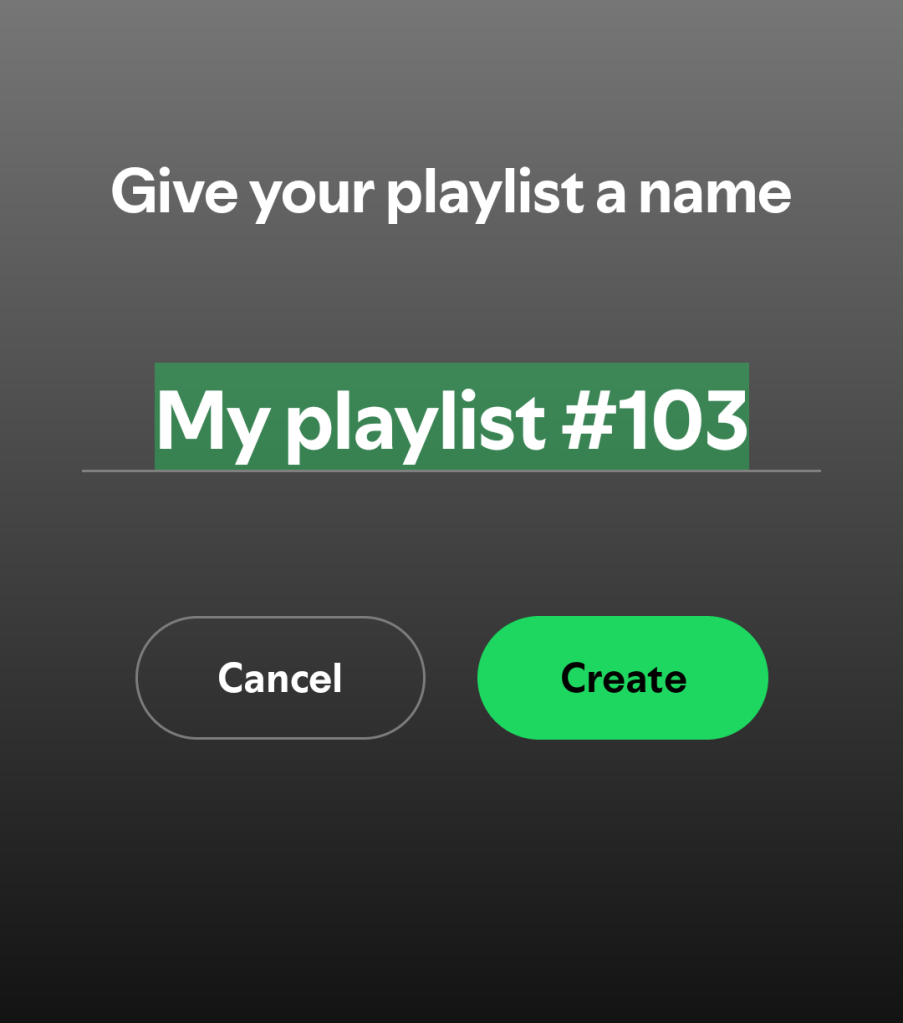
Step 5: Make the Playlist Collaborative
Once the playlist is created, tap the three dots (More Options) icon located at the top right of the playlist screen.

Step 6: Enable Collaboration
In the menu that appears, tap the “Make Collaborative” option. The playlist is now collaborative, and other users can add songs to it.

Step 7: Sharing the Playlist
To invite others to collaborate, tap the three dots icon again and select “Share.” You can then share the playlist via various methods, such as messaging apps, email, or by copying the link.

5. Adding Songs to a Collaborative Playlist
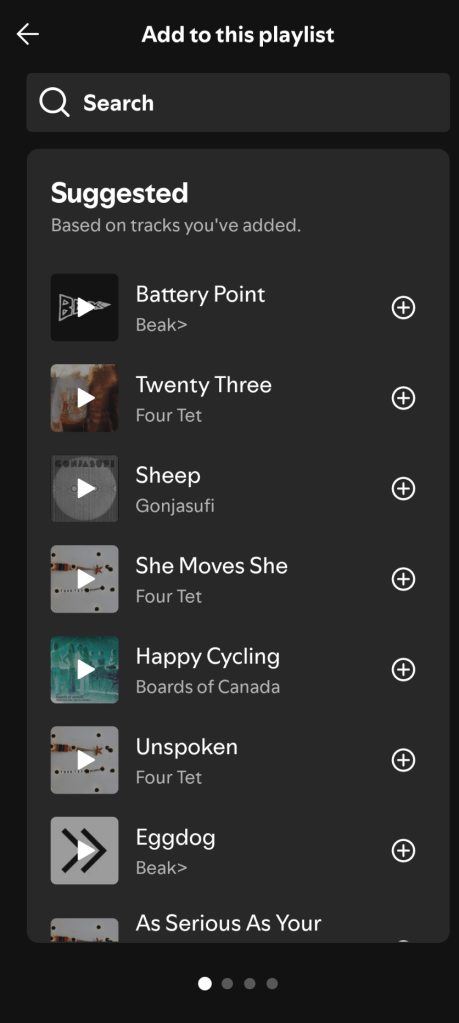
Any user with access to the collaborative playlist can add songs.
Step 1: Search for a Song
Use the search function within the Spotify app to find the song you want to add.
Step 2: Add to Playlist
Once you find the song, tap the three dots icon next to the song title. Select “Add to Playlist” and choose the collaborative playlist you want to add the song to.
6. Removing Songs from a Collaborative Playlist
Any user can remove songs they have added, and the playlist owner can remove any song.
Step 1: Locate the Song
Find the song you want to remove within the collaborative playlist.
Step 2: Remove from Playlist
Tap the three dots icon next to the song title and select “Remove from this Playlist.”

7. Managing the Playlist (Playlist Owner)
The playlist owner has additional control over the playlist, including the ability to change the playlist name, description, image, and make the playlist private again. These options are accessed through the three-dot menu on the playlist screen.
8. Conclusion
This helps users find the information they need. Including screenshots of the Spotify interface directly links the written instructions to the visual elements users will see in the app, enhancing their understanding of the process. This user-centered approach ensures that individuals can use the collaborative playlist feature on Spotify efficiently and effectively.
Summary:
This technical document provides a clear and concise guide to creating and managing collaborative Spotify playlists. The step-by-step instructions, along with visual aids, ensure that users of all technical levels can easily follow the process. The use of clearly labeled steps and straightforward language enhances readability and comprehension.
The document is well-structured, with clear headings and a logical flow, making it easy for users to navigate and quickly find the information they need. Screenshots of the Spotify interface correlate directly with the written instructions, reinforcing users’ understanding of the process. This user-centered approach guarantees that individuals can efficiently and effectively utilize the collaborative playlist feature on Spotify.
 Dream Dark Stories